
The week of March 23rd, 2026, I attended the annual Microsoft MVP Summit virtually. While I can’t share details due to NDA, one thing was crystal clear:
AI is no longer optional; it’s everywhere.
So much AI that after three days, my brain hit full-on AI meltdown.
If you’ve followed me on dotNetTips.com or BlueSky, you already know I’ve had a rocky relationship with GitHub Copilot. Working primarily with my OSS Spargine and the Spargine Dev Tool, I’ve found that roughly 50% of the code Copilot generates either doesn’t compile or doesn’t meet my dotNetDave coding standards. That’s not productivity, that’s rework.
So, I stopped using Agent mode and stuck with Ask mode for more control.
But after the Summit, I decided to give it one more shot.
And not just for small tasks.
I went all in.
I challenged Copilot to build an entire Visual Studio extension from scratch—without me writing a single line of code.
What followed was equal parts impressive, frustrating, surprising… and very revealing.
The Challenge: Can AI Build a Real Project from Scratch?
I want to be clear right up front: up until now, I’ve only used Copilot in Visual Studio to help improve Spargine and the Spargine Dev Tool, as well as to write documentation. For me, that’s been its lane.
But after what I saw at the MVP Summit, I wanted to push it way beyond that.
I wanted to know—could it build an entire project from scratch… without me writing a single line of code?
Yeah, I said it. No code. None.
I approached this like a development manager handing off requirements to a junior developer. And let’s be honest, I’ve said before that Copilot behaves like a junior developer, so this was the perfect test.
I gave it a clear set of requirements and let it run.
If something didn’t work the way I envisioned, I pushed back. I explained the issues, had Copilot fix them, and kept that cycle going—review, feedback, correction—repeatedly until I felt it was finally ready to ship.
No shortcuts. No hand coding. Just me driving… and Copilot doing the work.
The Idea: Fixing a 28-Year Gap in Visual Studio
Visual Studio has been around for 28 years—and in all that time, there’s still no built-in way to keep project version numbers in sync.
Let that sink in for a minute.
I’ve even asked Microsoft—and Mads Kristensen, Principal Product Manager for Visual Studio—to add this feature. It never happened.
I figured… why not take this on as the perfect test?
Especially since I’ve never built a Visual Studio extension before—and honestly, I had no idea how any of it worked. I’ve always considered extensions something best left to experts like Mads.
But that’s what made this interesting.
Up until now, the way I’ve kept Spargine’s version numbers in sync has been good old-fashioned search-and-replace. It works—but let’s be real, it’s not exactly elegant, and it’s definitely not automated.
This became the mission:
Could Copilot help me finally solve a problem that’s been sitting there—unsolved—for nearly three decades?
Laying Down the Rules (Like a Real Engineering Manager)
Since Copilot doesn’t retain session history beyond a day, I don’t have the exact prompt I used—but it went something like this:
Can you write an extension for Visual Studio 2026 that keeps the AssemblyVersion, FileVersion, and Version in sync for a solution?
After Copilot told me it was a great idea, it started asking follow-up questions—which, to its credit, is exactly what a real developer should do.
Some of the key ones were:
- Do I want to increase the version number on demand or during a build? I chose both.
- What part of the version number should be incremented? I chose all but favored the revision.
I don’t remember all the questions, but I added another important requirement: I wanted the ability to define a “master” project, so that all other projects would inherit their version numbers from it.
That piece was critical.
And this is something worth calling out—Copilot asking clarifying questions was actually one of the most encouraging parts of this experience. That’s exactly what you expect from a solid developer. You ask questions, you clarify requirements, and you make sure you’re solving the right problem before writing code.
Because if you don’t?
You’re just coding fast in the wrong direction.
Reality Check: AI Hits the Wall
I made some assumptions going into this.
Turns out… they were wrong.
I started with the Copilot app in Windows. It generated all the file content right there in the chat—which meant I had to manually create the project and copy/paste everything.
Remember, I said I didn’t want to write any code?
Yeah… this wasn’t that.
I even told it to generate the full project, package everything up, and zip it.
It couldn’t.
At that point, I almost gave up—but I figured maybe it would work better inside Visual Studio.
I fired up Visual Studio with no project loaded and dropped in the same prompt.
Same result.
Lots of code. No project.
Bummer.
I kept pushing it—“Just create the project and files.”
And it kept telling me… it couldn’t.
But I wasn’t ready to quit yet.
I kept thinking, shouldn’t this be something it can do, especially inside Visual Studio?
Then, right when I was about to walk away from the whole experiment, Copilot did something interesting.
It generated a long, script-like set of instructions and told me to run it in the terminal.
I didn’t even realize Visual Studio had a built-in terminal.
Turns out, it was referring to the Developer PowerShell window under Tools → Command Line → Terminal.
I ran the script.
Boom.
It created all the files.
That was impressive.
Then I tried to build it.
It failed.
Repeatedly, I told Copilot to fix the issues. It would suggest changes, I’d apply them, try again… and the build just kept failing.
I don’t even remember how many times I went through that loop—but I was getting close to calling it quits.
Then I had one last thought.
Maybe I should turn on Agent mode.
If you remember, I said earlier that I don’t use the Copilot Agent.
Well… this was about to change everything.
Turning Point: When Agent Mode Changed Everything
Once I switched to Agent mode, Copilot finally had better visibility into what was going on.
Now it could see the build errors.
It started making changes, kicking off builds, failing, adjusting, and trying again—repeatedly—for a few hours while I was watching MVP Summit sessions in the background.
Then finally…
The build succeeded.
Now it was time to test Version Sync.
Since I had never built a Visual Studio extension before, I had no idea how to test it. So, I did the obvious thing—I hit Run.
Visual Studio launched an experimental instance… something I didn’t even know existed.
That was cool.
What wasn’t cool?
I couldn’t find Version Sync anywhere.
I asked Copilot where it should be.
“It should be under Tools.”
It wasn’t.
“It should be in the Extensions Manager.”
Nope. Not there either.
Then Copilot told me to look in the build output for the .vsix file—the actual extension package.
I searched for it.
Nothing.
At this point, I stuck to my rule: I wasn’t going to write any code. So, I pushed everything back to Copilot and had it figure out what was wrong.
Even Copilot struggled with this one.
It took well over an hour before it finally managed to get the .vsix file to build correctly.
That told me something important.
The original code it generated?
It wasn’t just a little off—it was seriously broken.
Trial by Fire: Testing in the Real World
Now that everything was finally compiling, it was time to put Version Sync to the test.
The first thing I did was bring up the configuration and try out the master project mode.
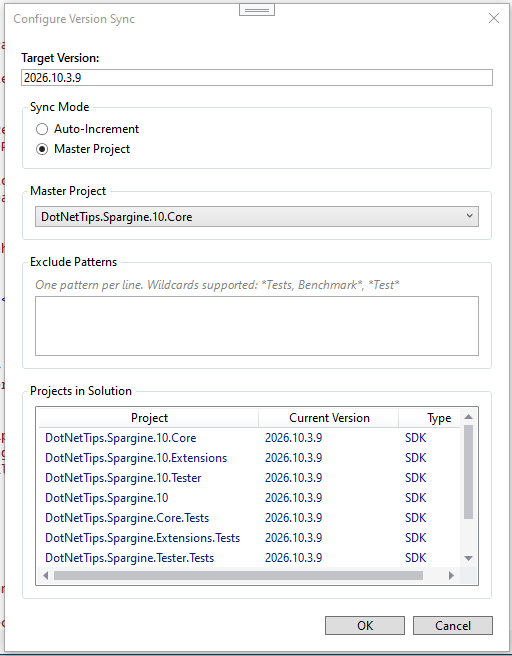
Right away, it looked promising.
It correctly picked up the current version number and properly listed all the projects in the solution.
So far, so good.
I clicked OK, which saved the configuration file. Then I went to the Version Sync menu and selected Sync Versions Now.
Nothing happened.
I tried opening the configuration again.
Nothing.
Now things were getting interesting.
I closed Visual Studio, deleted the bin folder, and tried again.
Still nothing.
I rebooted my machine.
No change.
At this point, I started wondering if I was ever going to get this working.
Then I had an idea—maybe the configuration file itself was the problem.
I deleted it.
Tried again.
It worked… once.
Then broke again.
That was the clue.
The issue had to be tied to the configuration file.
I fed that information back into Copilot, and after a few iterations, it found and fixed the problem.
Round one—done.
Next, I tested version updates.
I triggered a build.
I tried the Version Sync menu.
Nothing changed.
Back to Copilot.
It analyzed the issue and reported that there were missing hooks in the code. It fixed them.
I ran it again.
This time, the version numbers updated.
Progress.
But of course… there was another issue.
The <Version> tag in the project files was missing the revision segment—the last number in the version.
I reported it.
Copilot fixed it.
Ran it again.
Now everything worked.
Finally.
At that point, I started thinking—this might actually be something I can release.
Next step: test it in the standard instance of Visual Studio.
I asked Copilot how to do that, and as expected, it told me to double-click the .vsix file.
I did.
And the VSIX Installer threw an error—with a log.
Of course it did.
I pasted the log into Copilot.
It turned out there were incorrect settings in the manifest file. Copilot fixed them.
Tried again.
This time—it installed.
It showed up in both Visual Studio 2022 and 2026. I did notice that installation in 2026 took significantly longer than in 2022, which was interesting.
Then came the final test.
I opened my Spargine solution in Visual Studio 2026 and ran Version Sync.
Everything worked.
That was the moment.
Success.
Code Quality Check: Not Even Close
Now it was time to answer a big question.
I took the same EditorConfig file I use with Spargine and applied them to the project.
Then I ran Analyze.
The answer?
No.
Not even close.
I assumed Copilot would at least get the basics right.
I was wrong.
Here’s what I was staring at:
- 66 errors
- 117 warnings
- 118 messages
That’s not production-ready; that’s a cleanup project.
And to be clear, these weren’t unusual issues. This is the same kind of stuff I see all the time when reviewing code. That’s exactly why having a strong EditorConfig—like the one I use—is so critical. It enforces standards, catches problems early, and keeps your codebase from drifting into chaos.
Fixing everything took a few hours, including rebuilding and retesting along the way.
And then I found something even more concerning.
Two phantom methods.
They were being called—but didn’t actually do anything.
No purpose. Just… there.
I removed them, ran the project again, and everything still worked correctly.
Just to be safe, I had Copilot review the changes to make sure I hadn’t accidentally removed something Visual Studio depended on.
It reported no issues.
Still, this reinforced something important:
AI will write code.
But it won’t guarantee that the code makes sense.
Refinement Phase: Turning AI Output into Production Code
Once I fixed all the code violations, it was time to make a few changes.
The project name was VersionSync, but I wanted to brand it properly, so I changed it to DotNetTips.VersionSync.
Built it.
Ran it.
And it broke… again.
At this point, I still had no real experience with Visual Studio extensions, so I didn’t even know where to start looking for the issue. I stuck to my rule and pushed it back to Copilot.
After a few attempts, it fixed the problem.
Next issue.
When I looked up the extension in the Extension Manager, there was no image.
Not a great first impression.
I asked Copilot what images were required and what sizes I needed. I generated them, configured them in the project… and still, nothing showed up.
At this point, I had no idea where extension images were actually wired up.
I gave Copilot the file names and told it to fix the issue.
And it did.
Now everything was starting to come together:
- The code was clean
- The features were working
- The images were showing up correctly
This was starting to feel like a real product.
But before I called it done, I had one more question.
Was I missing anything developers might find useful?
I asked Copilot for suggestions.
It came back with a couple of solid ideas:
- Add the ability to exclude certain project types, like unit test projects
- Generate a summary report and display it in the output after a build
Good suggestions.
I told it to implement them.
Then I tested again.
The summary report wasn’t working correctly. In the “Show Output From:” dropdown, there were multiple Version Sync entries—and none of them were showing the right information.
Back to Copilot.
I explained the issue, and it fixed it.
Now the output looked like this:
[09:33:52] Loaded settings from: D:\src\GitHub\dotNetTips.Spargine.10.versionsync.json
[09:33:52] Current version: 2026.10.3.10, Mode: AutoIncrement, Strategy: Revision, Increment requested: True
[09:33:52] Resolved target version: 2026.10.3.11
[09:33:52] Saved version: 2026.10.3.11 to D:\src\GitHub\dotNetTips.Spargine.10.versionsync.json
[09:33:52] Version Sync complete - 8/8 projects set to 2026.10.3.11.
That’s the kind of output you actually want—clear, actionable, and useful.
At this point, I was finally done.
Or so I thought.
Now the question was…
How do I get this into the Visual Studio Marketplace?
Shipping It: From Experiment to Marketplace
At this point, I had something that actually worked.
Now came a whole new challenge.
I had no idea how to publish a Visual Studio extension to the Marketplace.
My only experience in this area is with NuGet—and this is not the same thing.
I did what I’d been doing throughout this entire process—I asked Copilot:
@vs How do I publish this new extension into the Visual Studio Marketplace?
It came back with a three-step process.
Simple enough… on paper.
It also recommended creating a detailed overview.md file—complete with screenshots—to help drive downloads.
Yeah… I wasn’t too excited about doing that manually.
I had Copilot generate it for me.
It did a solid job overall—but not surprisingly, it wasn’t perfect. There were a few things it got wrong, so I went in and cleaned those up. You can see the final version of the overview.md at the end of this article.
One thing became very clear during this process:
Publishing a Visual Studio extension is a lot more involved than publishing a NuGet package.
There are more moving parts, more configuration, and more opportunities for things to go sideways.
But in the end, it all came together.
Final Polish: Small Change, Big Impact
Version Sync was showing up under the Tools menu—but that didn’t feel right.
This is a build-related feature. That’s where developers expect to find it.
I told Copilot to move it under Build.
Tested it.
Now it showed up exactly where it belonged.
A small change—but one that makes a big difference in usability.
Because details like this matter.
The Verdict: Did AI Deliver?
Let’s break this down.
Here’s how working with GitHub Copilot actually went.
1. Did it meet the project goals?
Somewhat—but not on the first try. It took hours of back-and-forth with Copilot to get everything building and working the way it should.
2. Did I have to write any code?
Somewhat. Copilot did all the coding for the extension. I had to fix code violations.
3. Did it write code up to my standards?
No. Not even close. It took hours to clean up, fix issues, and bring it up to production quality.
4. Did it help me deploy Version Sync to the Visual Studio Marketplace?
Yes.
What’s the real takeaway?
Copilot struggled with the most critical parts—getting the project to build cleanly, handling edge cases, and producing production-ready code.
But at the same time, it got me most of the way there in about a day.
If I had to learn how to build a Visual Studio extension from scratch and write all the code myself, I’d estimate that would have taken at least a week—and that’s time I wasn’t willing to invest in this project.
I’ve said it before, and this experience only reinforced it:
Copilot behaves like a junior developer.
It has a lot of book knowledge—but no real-world experience.

Throughout this project, it acted exactly like a junior developer I just hired. It needed direction, constant feedback, and a lot of hand-holding to get the job done.
Is Copilot ready to build complete, production-quality projects from scratch on its own?
No.
Not even close.
The Journey: What It Took to Get There
After putting GitHub Copilot through a real-world test, here’s what became crystal clear.
AI accelerates—but it doesn’t replace engineering.
Copilot got me moving fast, but it didn’t get me across the finish line. That still required experience, judgment, and a lot of refinement.
Treat AI like a junior developer.
It can write code, ask questions, and follow directions—but it needs guidance, feedback, and oversight every step of the way.
Never trust AI-generated code blindly.
Just because it compiles doesn’t mean it’s correct, efficient, or even logical. You still must review everything.
Strong coding standards are non-negotiable.
My EditorConfig immediately exposed hundreds of issues. Without it, those problems would have made it into production.
Iteration is still the real work.
The process didn’t change: test, fail, fix, repeat. AI just made the loop faster, not unnecessary.
AI is a force multiplier—if you know what you’re doing.
If you’re an experienced developer, AI can dramatically speed things up. If you’re not, it can just help you make mistakes faster.
Don’t use AI to learn how to write production code—at least not yet.
After going through this experience, one thing is clear: software engineers—especially junior engineers—should not rely on AI to learn how to write high-quality, production-ready code. Right now, AI can reinforce bad habits just as easily as good ones. Without a solid foundation, it’s hard to tell the difference.
Learn the fundamentals first. Then use AI as a tool—not a teacher.
Lessons Learned: Where Copilot Shines—and Where It Falls Short
Here are a few more things I learned while creating this extension. This is where the experience really became clear—what Copilot does well, and where it still needs improvement.
Where Copilot Got It Right
- Copilot consistently added proper parameter validation to methods. This is something I still see missing in many production codebases, so this was a pleasant surprise.
- Class and method naming were generally strong. The names were clear, meaningful, and aligned with common conventions. That’s not always the case, even with experienced developers.
- Copilot correctly implemented disposable patterns. It properly wired up IDisposable, which is something I frequently see missing or done incorrectly in code reviews. This was a solid win.
Where Copilot Fell Short
- Copilot does not move strings into resource files. This is a major gap for globalization and localization support and would require manual correction in any real-world application.
- Formatting was inconsistent. Spacing between methods, properties, and members varied throughout the code. While not a functional issue, it negatively impacts readability and maintainability.
- XML documentation was lacking. Copilot did not properly document classes and methods, which is essential for maintainability, especially in shared libraries and extensions.
- Copilot did not consistently use modern C# patterns. For example, it did not properly use the discard pattern (
_ =). These may seem like small details, but they are part of writing clean, modern, high-quality code. - While method parameter validation was strong, the same level of care was not applied to properties. That inconsistency is something developers still need to correct manually.
One Last Lesson
You cannot use modern .NET to build Visual Studio extensions. You are locked into .NET Framework 4.8. This isn’t Copilot’s fault, but it significantly limits what it can generate. It also means I could not take advantage of .NET 10 performance improvements or use my Spargine library. This is something the Visual Studio team needs to modernize.
Final Take
Most of these issues are the same problems I see in the majority of codebases I review.
That raises an important question:
Shouldn’t AI be better than this? Right now, Copilot isn’t replacing developers. But it is reflecting the current state of developer habits—good and bad.
Installing Version Sync
You can install Version Sync by searching for it in the Extensions Manager in Visual Studio.
You can go to the page on the Visual Studio Marketplace and download it from there.
https://marketplace.visualstudio.com/items?itemName=DavidPMcCarter-dotNetTipscom.VersionSync2026
Summary
Let’s be clear—AI didn’t replace the developer here.
It accelerated the process, but it didn’t eliminate the need for experience, judgment, or discipline.
GitHub Copilot got me about 70–80% of the way there—fast.
But that last 20–30%? That’s where the real engineering happened.
- Fixing broken builds
- Cleaning up poor-quality code
- Enforcing standards
- Debugging logic issues
- Making it production-ready
That still requires a seasoned developer.
Right now, AI behaves exactly like what I’ve been saying:
A junior developer with a lot of book knowledge—but no real-world experience.
It needs guidance.
It needs review.
And it definitely needs supervision.
Here’s the bottom line:
- Don’t blindly trust AI-generated code.
- Always validate, test, and review everything.
- Use AI as a force multiplier—not a replacement.
If you’re not using AI yet, start now—but go in with your eyes open.
We’re still in the early innings.
And yes, it’s going to get better.
But today?
Great engineers aren’t being replaced.
They’re becoming more important than ever.
AI might be able to write code…
But it still takes a real engineer to rock it.
My EditorConfig: https://gist.github.com/RealDotNetDave/dbae4d97358ba4515dd52e5b8ca87671
overview.md
dotNetTips.com Version Sync
Version Sync keeps AssemblyVersion, FileVersion, and Version in sync across every project in your Visual Studio solution — automatically.
The Problem
Multi-project solutions often drift: one project ships as 2.3.1.1, another as 2.2.0.1, and your .nuspec says 2.1.0.3. Tracking them down manually wastes time and causes packaging headaches.
The Solution
Version Sync gives you a single source of truth for version numbers. Choose a sync mode, and the extension handles the rest — on every build or on demand.
Features
| Feature | Description |
|---|---|
| Auto-Increment on Build | Automatically bumps the version each time you build. Choose which component to increment: Major, Minor, Patch, or Revision. Optionally limit auto-increment to Release builds only (non-Release builds still sync without incrementing). |
| Master Project Mode | Designate one project as the version source; all other projects follow its version. |
| Directory.Build.props Support | Detects and updates centralized version properties in Directory.Build.props so SDK-style solutions stay consistent. |
| SDK & Legacy Project Support | Works with both SDK-style (.csproj) and legacy .NET Framework projects (AssemblyInfo.cs). |
| VSIX Manifest Sync | Updates source.extension.vsixmanifest so your extension version matches the solution version. |
| NuSpec Sync | Finds standalone .nuspec files and updates their version element. |
| Version Report | Generates a read-only report of every project’s current version, written to the Output window. |
| Exclude Patterns | Skip projects that should not be versioned using glob-style patterns (test projects, samples, etc.). |
| Configuration Dialog | A WPF dialog to view all project versions, choose sync mode, set increment strategy, and save settings — all without leaving the IDE. |
| First-Run Auto-Detection | When you open a solution that has no Version Sync settings, the configuration dialog opens automatically and seeds the version from the highest version found across your projects. |
| Per-Repository Settings | Settings are stored in a .versionsync JSON file at the repository root, so every team member shares the same configuration via source control. |
Supported Visual Studio Editions
- Visual Studio 2022 Community, Professional, and Enterprise (17.x)
- Visual Studio 2026 Community, Professional, and Enterprise (18.x)
Getting Started
- Install the extension from the Visual Studio Marketplace.
- Open a solution.
- First-run: If no
.versionsyncsettings file exists, the configuration dialog opens automatically with the version pre-populated from your projects. - Manual configuration: Go to Build → Version Sync → Configure… to open the configuration dialog at any time.
- Choose a Sync Mode:
- Auto-Increment — the extension manages the version and bumps it on each build based on the selected increment strategy (Major, Minor, Patch, or Revision).
- Master Project — right-click a project in Solution Explorer and select Set as Version Master. All other projects will receive that project’s version.
- Optionally configure:
- Increment on Build — enable or disable automatic version bumping on build.
- Release Builds Only — restrict auto-increment to Release configuration builds (non-Release builds still sync versions without incrementing).
- Exclude Patterns — glob-style patterns to skip specific projects from version synchronization.
- Click Save. From now on, every build keeps your versions aligned.
Commands
All commands are located under the Build menu in Visual Studio.
| Menu Path | Command | What It Does |
|---|---|---|
| Build → Version Sync | Sync Versions Now | Immediately syncs and increments all project versions based on your saved settings. |
| Build → Version Sync | Configure… | Opens the configuration dialog to view project versions, choose sync mode, set increment strategy, and save settings. |
| Build → Version Sync | Version Report | Generates a version summary for all projects and writes it to the Output window. |
| Solution Explorer (project context menu) | Set as Version Master | Designates the selected project as the version source and switches to Master Project mode. |
Settings File
Version Sync stores its configuration in a .versionsync JSON file at the repository root. This file includes:
- version — the current version string applied to all projects
- syncMode —
AutoIncrementorMasterProject - incrementStrategy —
Major,Minor,Patch, orRevision - incrementOnBuild — whether to auto-increment on build
- releaseBuildsOnly — whether to restrict incrementing to Release builds
- masterProjectRelativePath — the relative path to the master project (when using Master Project mode)
- excludePatterns — glob-style patterns for projects to skip
Commit this file to source control so the entire team shares the same version configuration.
Pick up any books by David McCarter by going to Amazon.com: http://bit.ly/RockYourCodeBooks
Make a one-time donation
Make a monthly donation
Make a yearly donation
Choose an amount
Or enter a custom amount
Your contribution is appreciated.
Your contribution is appreciated.
Your contribution is appreciated.
DonateDonate monthlyDonate yearlyIf you liked this article, please buy David a cup of Coffee by going here: https://www.buymeacoffee.com/dotnetdave
© The information in this article is copywritten and cannot be reproduced in any way without express permission from David McCarter.
Discover more from dotNetTips.com
Subscribe to get the latest posts sent to your email.

One thought on “Rock Your Code: I Let AI Build a Visual Studio Extension—Here’s What REALLY Happened”