
If you’ve read my website or any of my books, you already know this: the only code refactoring tool I have ever consistently used is CodeRush from DevExpress. I’ve relied on it for years, and one feature it added some time ago—support for embedding images directly into source code—has quietly become one of my favorites.
Initially, I used this feature purely for branding. Every file in the Spargine projects includes the Spargine logo at the top of the file. That’s great for marketing and consistency, but recently I started using this capability for something far more valuable: making complex code easier to understand.
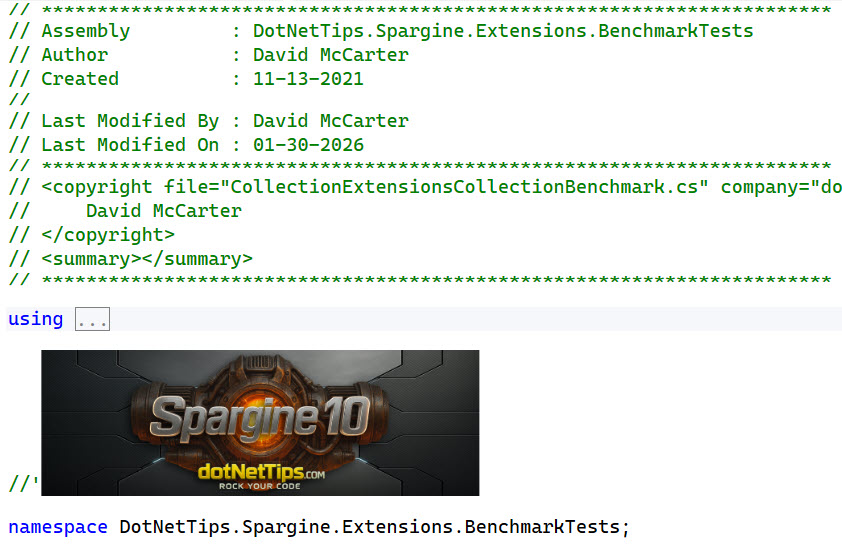
In this article, I’ll show you how I use Mermaid flow diagrams, generated with the help of Copilot, and embed them directly into source code using CodeRush to visually document method flow and behavior.
Creating the Mermaid Flow Diagram
Mermaid is a lightweight, text-based diagramming language. You write a simple text description, and Mermaid renders it into diagrams such as flowcharts and sequence diagrams. It’s popular in Markdown files, documentation, and README files because it’s fast, readable, and easy to maintain.
At this point you might be thinking, “Great, another syntax I have to learn.” I didn’t learn it either—I let Copilot do the work.
I decided to test Mermaid on the FileProcessor.DeleteFiles() method in the DotNetTips.Spargine project. This method is a good candidate because it has multiple execution paths, raises events for each processed file, and supports cancellation.
public int DeleteFiles(IEnumerable<FileInfo> files, CancellationToken cancellationToken = default)
There are five distinct paths through this method, which makes it ideal for a visual flow diagram. I opened the Copilot chat window and simply typed:
Create a Mermaid flowchart for DeleteFiles
Copilot generated the full Mermaid flowchart syntax for me:
flowchart TD

    Start([DeleteFiles Called]) --> CheckNull{files == null?}

    CheckNull -->|Yes| Return0[Return 0]

    CheckNull -->|No| RemoveNulls[Remove Nulls & Distinct]

    RemoveNulls --> CheckEmpty{files.IsEmpty?}

    CheckEmpty -->|Yes| Return0

    CheckEmpty -->|No| InitVars[Initialize successCount=0<br/>Create PerformanceStopwatch]

    InitVars --> Loop{For each file}

    Loop --> CheckCancellation{Cancellation<br/>Requested?}

    CheckCancellation -->|Yes| ThrowCancel[Throw OperationCanceledException]

    CheckCancellation -->|No| FileExists{File Exists?}

    FileExists -->|No| FireNotFound[Fire Processed Event:<br/>FileNotFound Error]

    FireNotFound --> Loop

    FileExists -->|Yes| TryBlock[Try Block]

    TryBlock --> GetLength[Get fileLength]

    GetLength --> RemoveReadOnly[Remove Read-Only Attribute]

    RemoveReadOnly --> StartTimer[Start PerformanceStopwatch]

    StartTimer --> DeleteFile[Delete File]

    DeleteFile --> StopTimer[Stop Timer & Get Performance]

    StopTimer --> IncrementSuccess[successCount++]

    IncrementSuccess --> FireSuccess[Fire Processed Event:<br/>FileDeleted with timing]

    FireSuccess --> Loop

    TryBlock -->|Exception| Catch[Catch Block]

    Catch --> FireError[Fire Processed Event:<br/>Error with exception message]

    FireError --> Loop

    Loop -->|Done| ReturnSuccess[Return successCount]

    ReturnSuccess --> End([End])

    Return0 --> End

    ThrowCancel --> End

    style Start fill:#90EE90

    style End fill:#FFB6C1

    style ThrowCancel fill:#FF6B6B

    style FireError fill:#FFA500

    style FireSuccess fill:#4CAF50

    style DeleteFile fill:#2196F3
Turning the Diagram into an Image
To convert the Mermaid syntax into an image, I went to the Mermaid website and created a free account. From there:
- Click New Document
- Paste in the Mermaid syntax
- Let Mermaid render the diagram (this takes only a second)
- Export the result as a PNG
Do not export to SVG—CodeRush does not support SVG images.
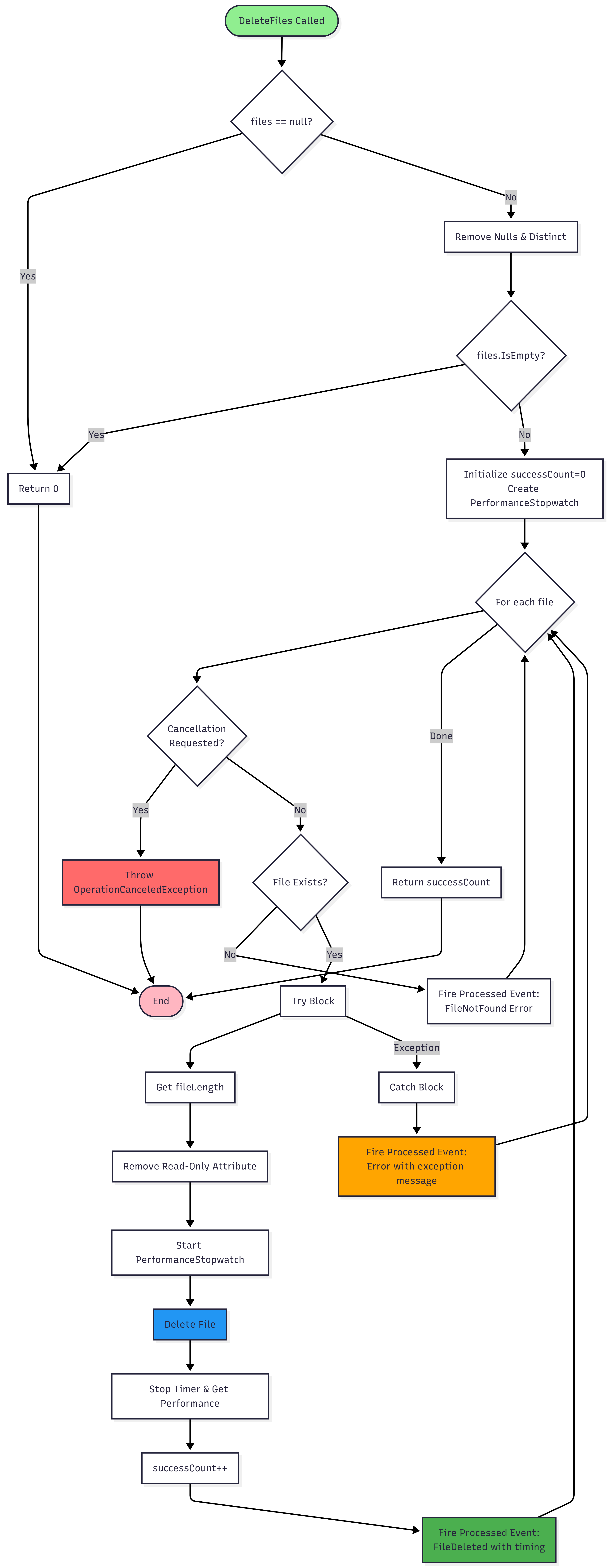
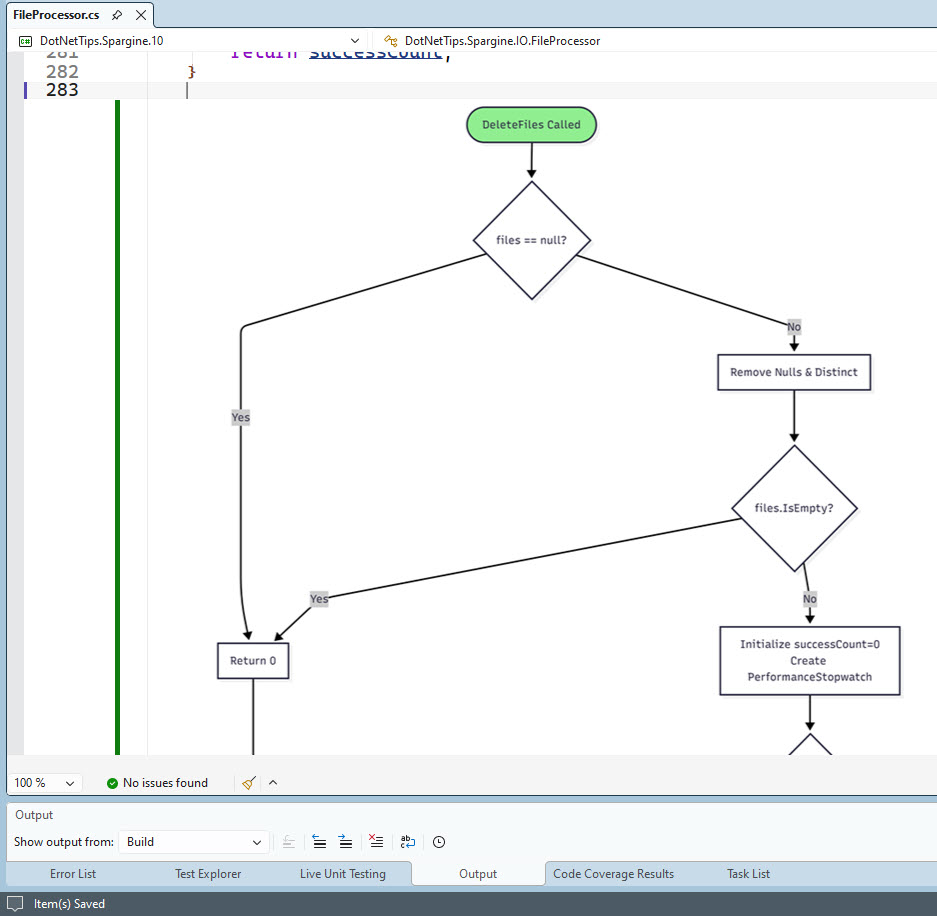
Adding the Image to Source Code with CodeRush
Adding images with CodeRush works, but it’s a bit clunky. Here’s the process:
- Open the image in any application (such as Photos) and copy it to the clipboard.
- In the code editor, type
//, then right-click and select Paste Image. - CodeRush inserts an identifier similar to this:
// - Click off the line, and the image renders directly inside the editor.
Once the image is embedded, you can right-click it to:
- Add an HTTP link
- Scale the image
- Crop the image
- Copy, cut, or delete the image
- Open the file location
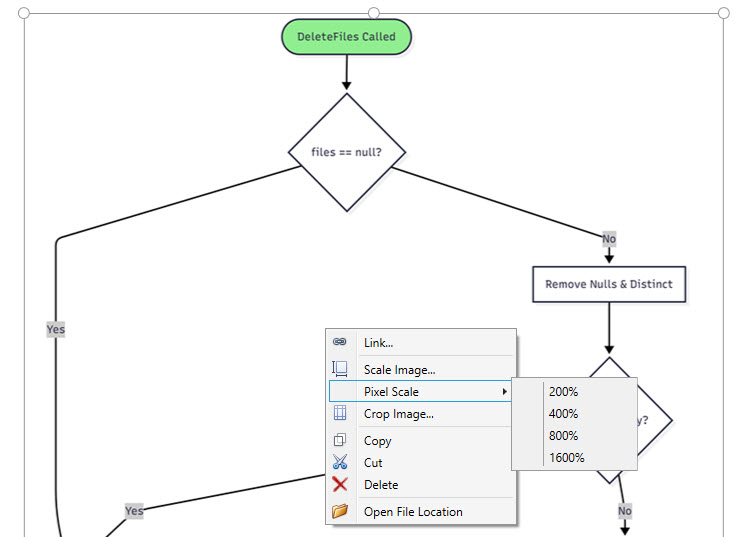
It’s a genuinely useful feature once you know it exists.
Limitations and Pain Points
The Mermaid image generated for this method was 3,194 × 8,192 pixels, which is far too large to be practical in the editor. I attempted to resize it using CodeRush’s scaling feature, but with an image that large, it was difficult to get usable results. I eventually resized it externally.
This is an area where CodeRush could improve significantly.
Suggestions for Improving CodeRush
I really like this feature, but I don’t use it often enough to remember the steps. Every time, I have to look up the instructions on the DevExpress website.
Here’s what would dramatically improve the experience:
- A simple Insert Image option in the editor’s right-click menu
- A dialog that allows selecting an image from disk or the clipboard
- Automatic insertion of the correct syntax
- Image scaling during the insert process
- Proper support for printing code files with embedded images
If you try printing a code file from Visual Studio today, the images are ignored entirely.
Summary
If you have methods with non-trivial control flow, a visual diagram can explain more in seconds than comments ever will. Mermaid makes creating those diagrams fast and painless, especially when you let Copilot do the heavy lifting. CodeRush then allows you to embed those diagrams directly into your source code, keeping documentation close to the logic it describes.
CodeRush is free. Mermaid is free. The only real cost is a few minutes of your time—and the payoff is clearer, more maintainable code.

Pick up any books by David McCarter by going to Amazon.com: http://bit.ly/RockYourCodeBooks
Make a one-time donation
Make a monthly donation
Make a yearly donation
Choose an amount
Or enter a custom amount
Your contribution is appreciated.
Your contribution is appreciated.
Your contribution is appreciated.
DonateDonate monthlyDonate yearlyIf you liked this article, please buy David a cup of Coffee by going here: https://www.buymeacoffee.com/dotnetdave
© The information in this article is copywritten and cannot be preproduced in any way without express permission from David McCarter.
Discover more from dotNetTips.com
Subscribe to get the latest posts sent to your email.

 dotNetTips.com